
Add Multiple Previews to your Templates

You can now create multiple previews for a single product, giving shoppers different ways to visualize their personalization before buying.
This opens up a lot of possibilities, from showing different contexts or backgrounds to offering alternative design compositions, all within the same product.
What’s new?
-
Add multiple previews to a single template
-
Each preview works independently
-
Shoppers can switch between previews directly on the product page
How it works
In the Template:
-
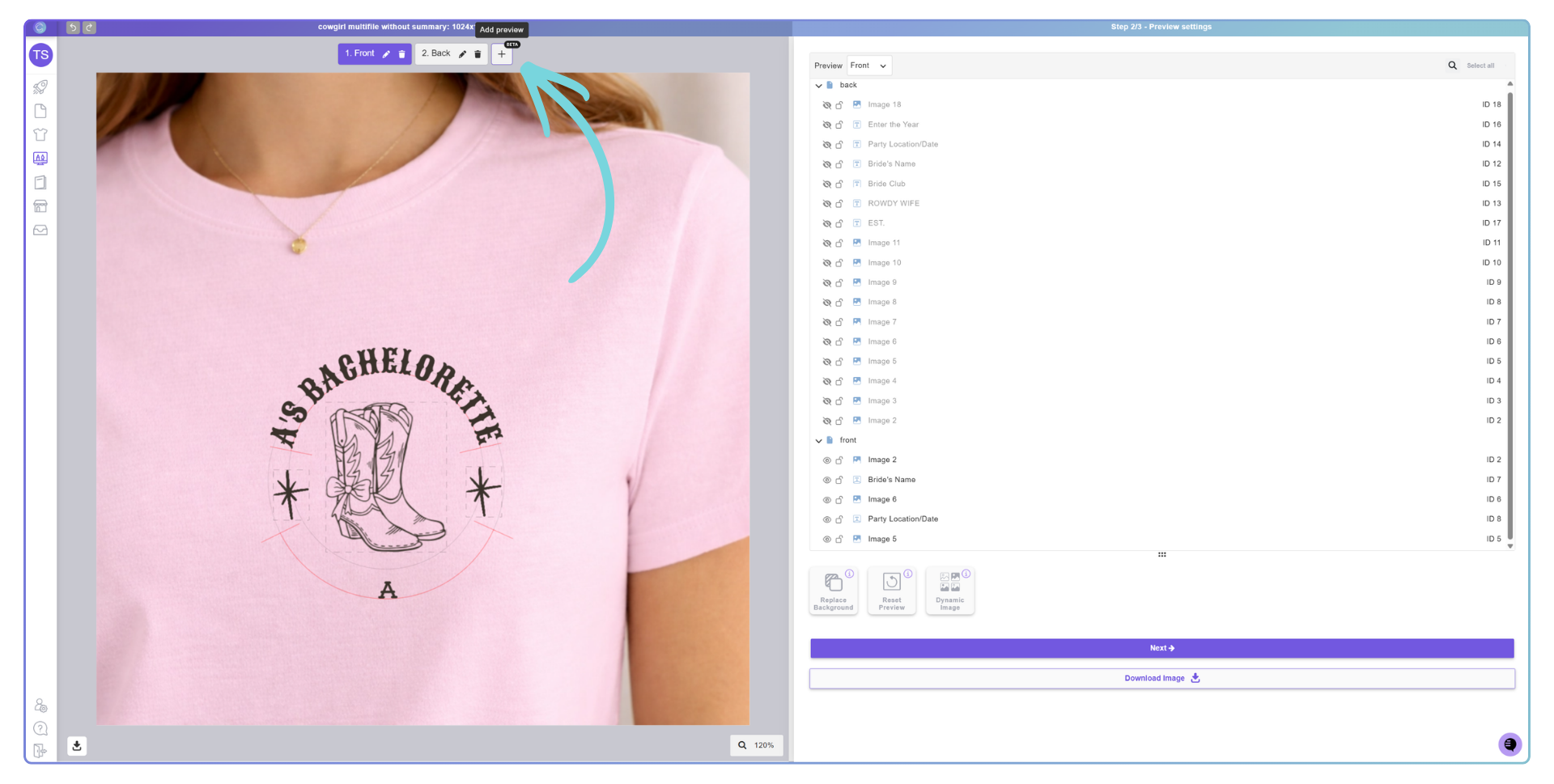
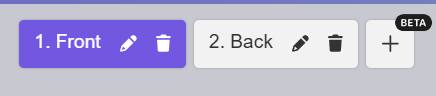
In Step 2, you’ll find the new “Add Preview” button
-
Each new preview is created as a duplicate of the default one
-
From there, you can customize each preview independently
-
Change background (image or color)
-
Reset the preview
-
HIDE elements that shouldn't be visible
-
On the Option Set:
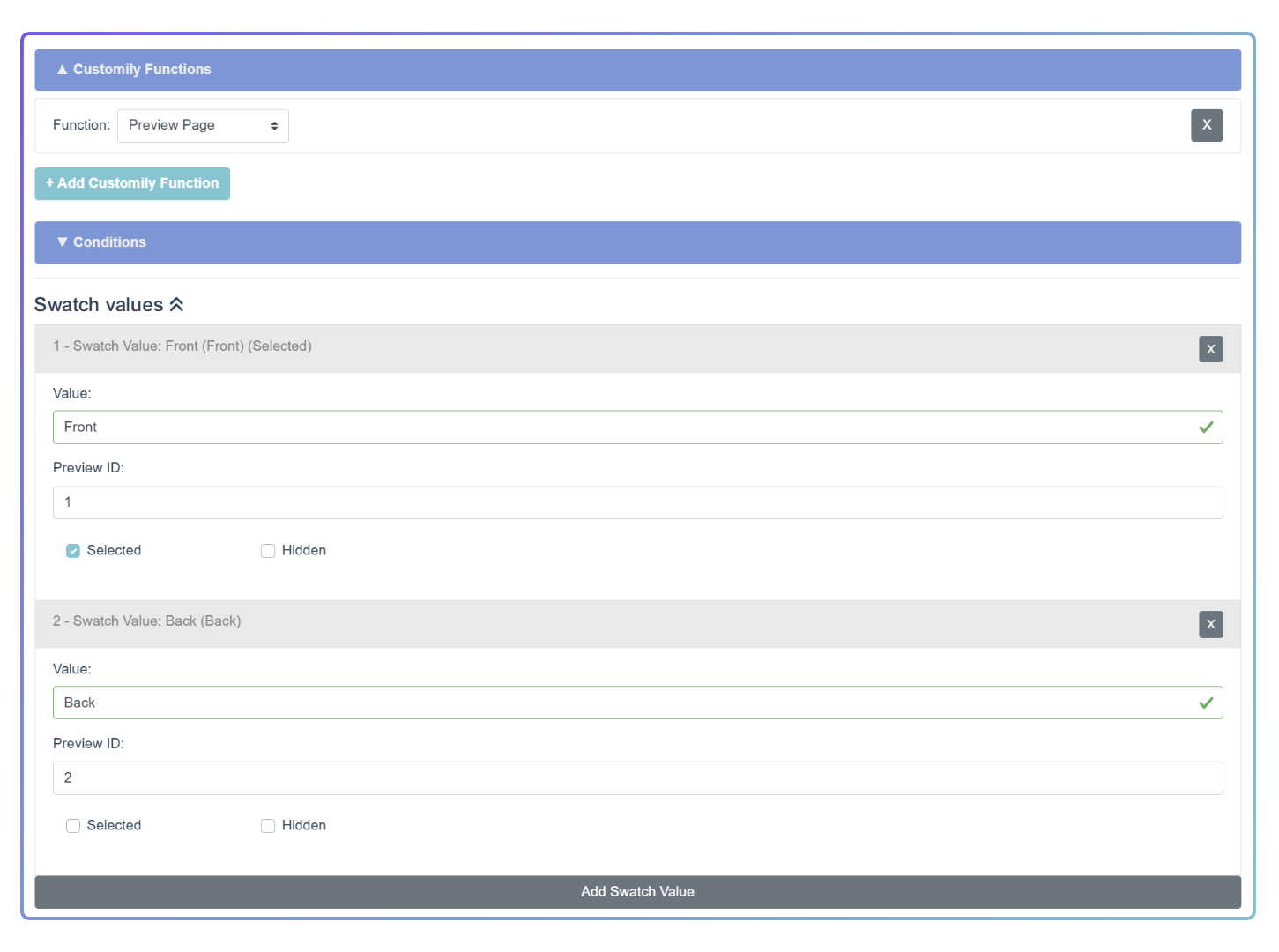
To further control how the switcher appears, you can configure it in your Option Set:
-
Type: Swatch, Text Swatch, Dropdown, or Dropdown Swatch
-
Function: Preview
-
Values:
-
Name: your display label
-
ID: matches the preview number (1, 2, 3, etc.)
-
For new option sets, the Preview Switcher is automatically created when multiple previews are detected.
On the Storefront:
-
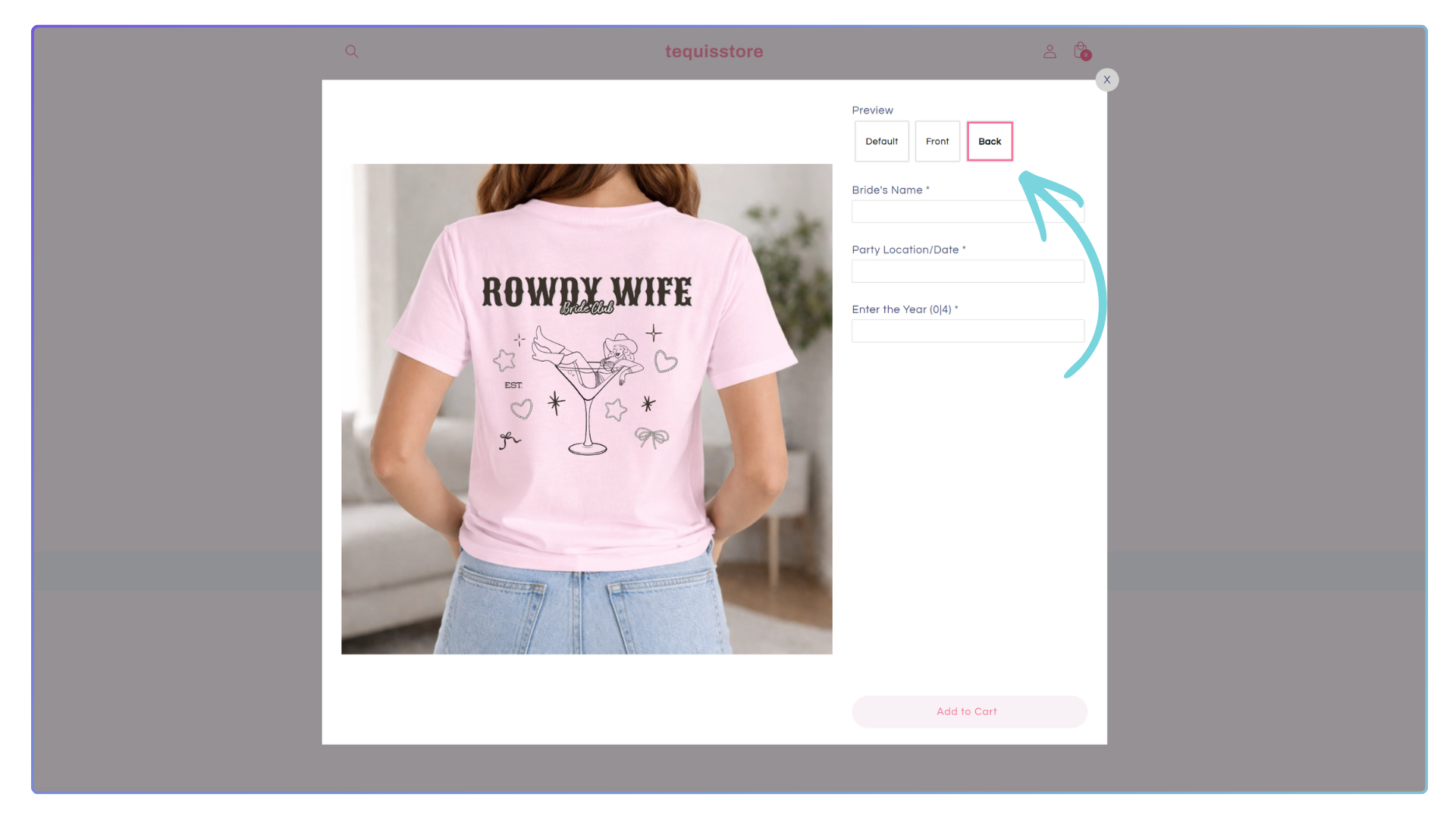
If your template has more than one preview, a Preview Switcher will automatically appear on the product page
-
Shoppers can easily toggle between different previews
Currently available for Shopify and WooCommerce stores.