
Insert Fixed Text Between Characters & Words

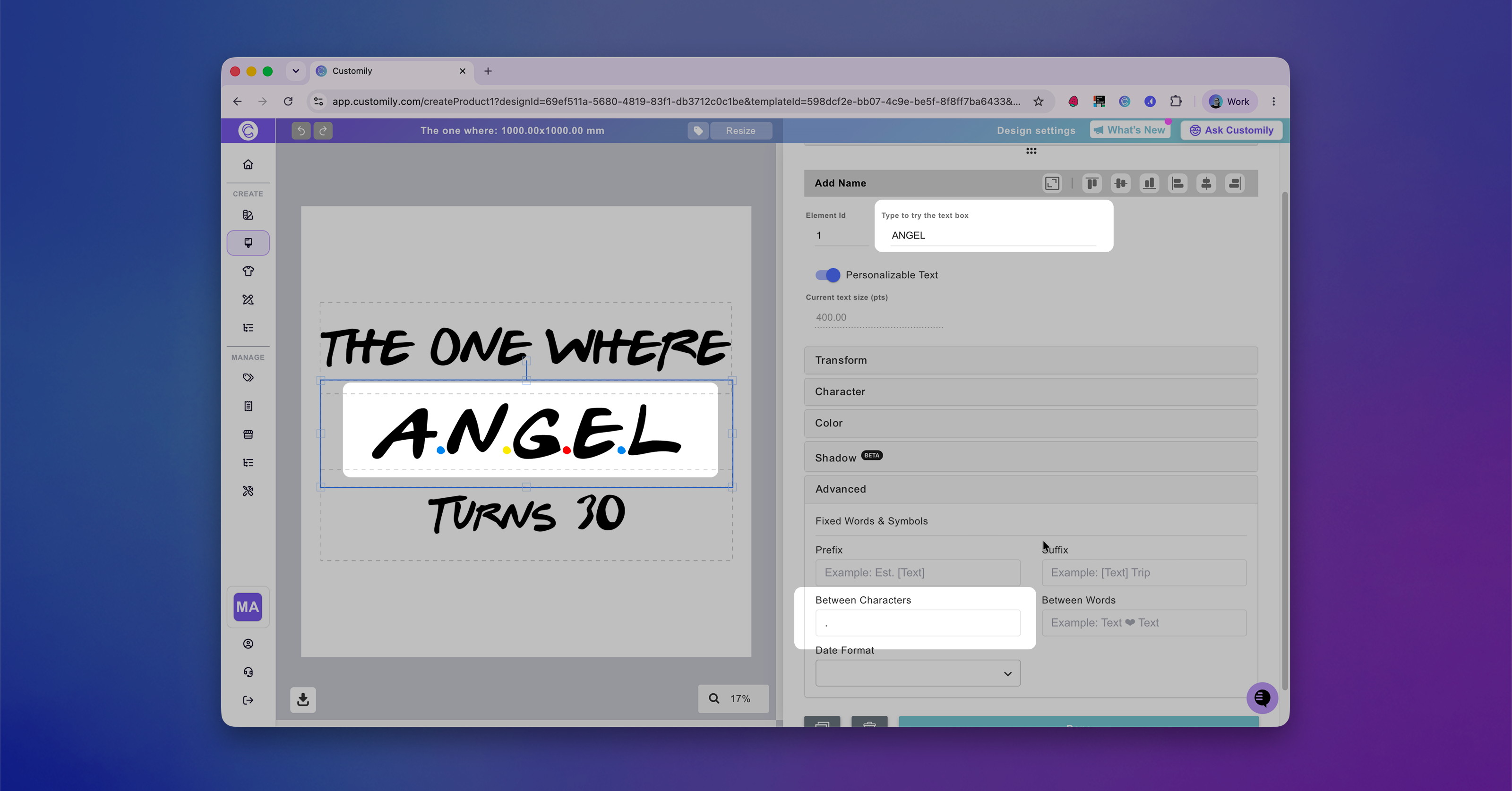
We’ve expanded our fixed text options with Between Characters and Between Words. Just like Prefix and Suffix, these new fields automatically insert fixed letters, symbols, or words, but this time between your shoppers’ input words.
This lets shoppers enter their text naturally while Design Studio automatically formats it for you.
Examples
-
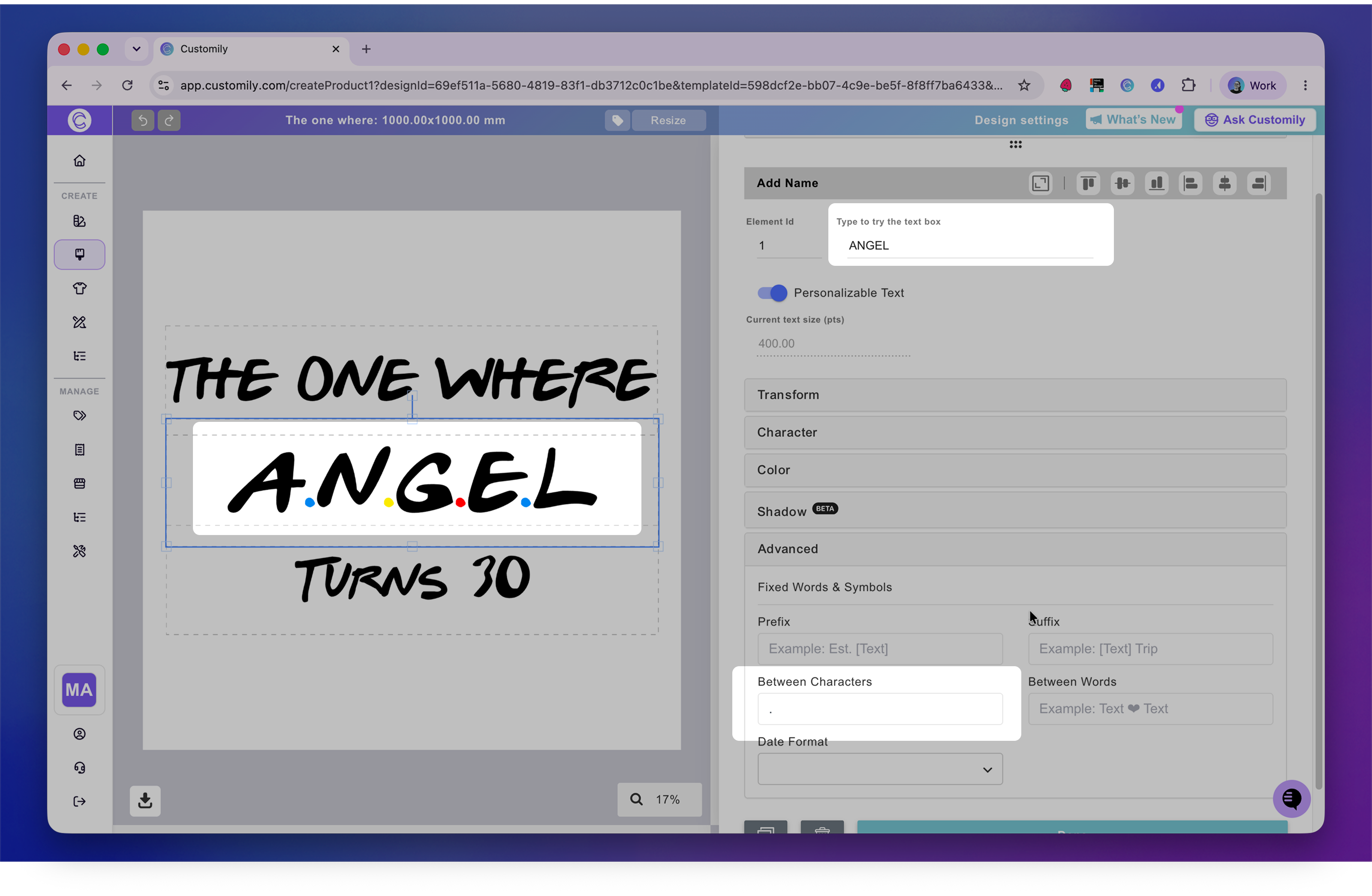
Between Characters
-
Shopper enters: ANGEL
-
Fixed Between Characters: .
-
Result: A.N.G.E.L
-
-
Between Words
-
Shopper enters: Angel Joshua Peter Richard
-
Between Words: ♥
-
Result: Angel ♥ Joshua ♥ Peter ♥ Richard
-
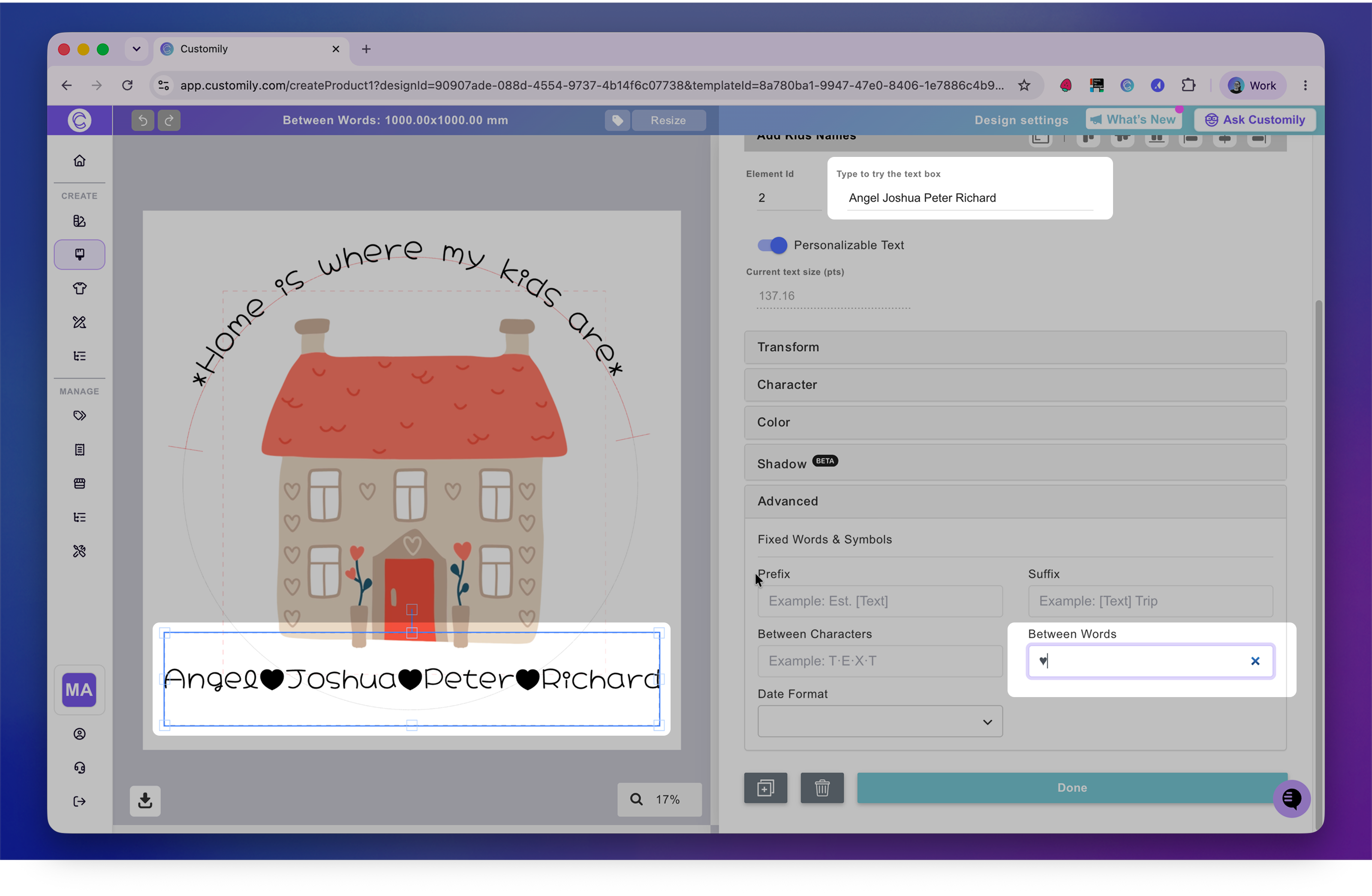
You’ll find both options under Advanced for every text element in Design Studio, including Curved Text and Warped Text.
⚠️ Disclaimer: The font used must contain a compatible character with the letter/symbol entered. If your font doesn't include the letter/symbol entered, you can always edit the font with a type software like fontforge.