
Multi-Image Control for Dynamic Images (Clipart)

You can now control multiple Dynamic Images with a single option, as long as they share the same library. This update simplifies your setup and unlocks a much smoother drag and drop experience directly on the live preview.

Previously, each Dynamic Image required its own option, even if they all used the same library. This often led to repetitive setups and more complex option sets, providing friction to the shopper.
Now, you can group them under one option, making everything more intuitive for your shoppers.
What’s new?
-
One single option can control multiple Dynamic Images
-
Support for multiple selections from the same library
-
Shoppers can add, remove, and swap positions directly on the live preview
How to set it up
In the Design Studio:
-
Set up your Dynamic Images with different IDs, all using the same library
-
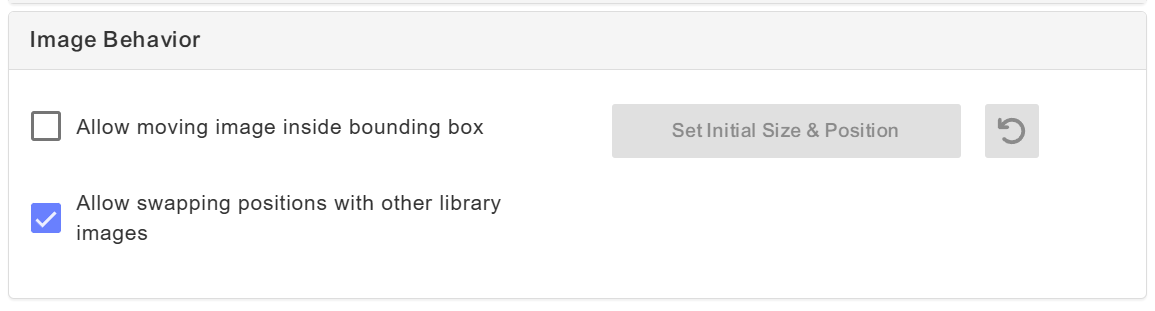
Enable “Allow swapping positions with other library images” in the Image Behavior section
In the Option Set:
-
Use one option for the library selection
-
Enable “Allow multiple selections”
-
Add all corresponding Dynamic Image functions with their IDs to that option
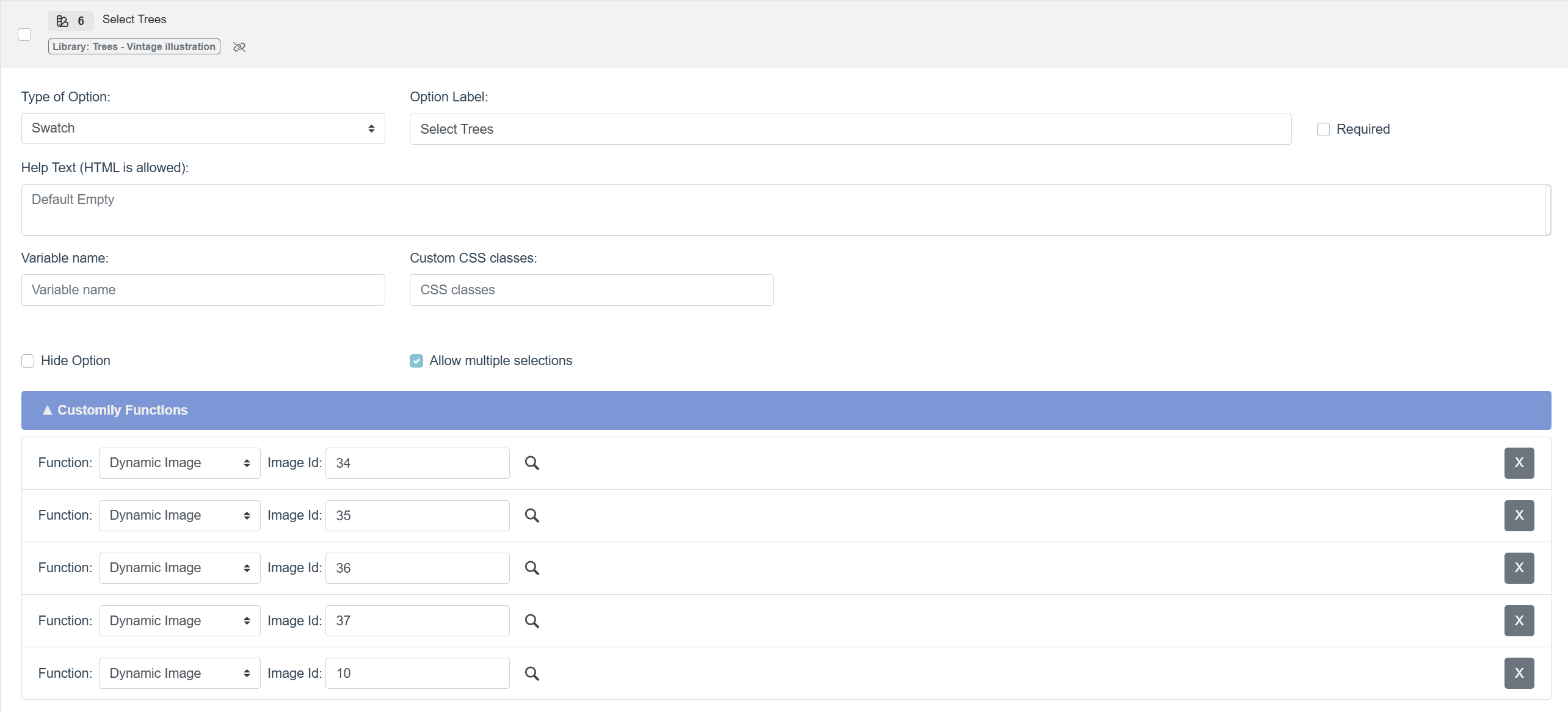
That’s it! On your storefront, shoppers will see a single option controlling all those images, and will be able to interact with them directly on the canvas.
A quick note: If you’re dynamic images belong to different layouts,
-
each Dynamic Image must have a unique ID
-
each layout configuration must have it's own multi-select option with the corresponding IDs, conditioned to be shown only when necessary
Currently available for Shopify stores