
👕 Product-Level Settings

We’ve started rolling out settings that can now be configured per product, giving you much more flexibility when setting up your store.
Previously, things like custom JavaScript and preview styles could only be configured at the store level, meaning any change would affect your entire catalog.
What’s new? You can now configure several of these settings directly on a product level, including:
-
Preview Styles
-
Optional/Required Personalization
-
Custom JavaScript
How to Set this Up:
-
Head over to your product on the Customily app, and click on Product Settings on the top right corner
-
Click on Override on the settings you'd like to set up for this product
-
Click on Save Settings, and your product will now use these settings instead of the Store's.
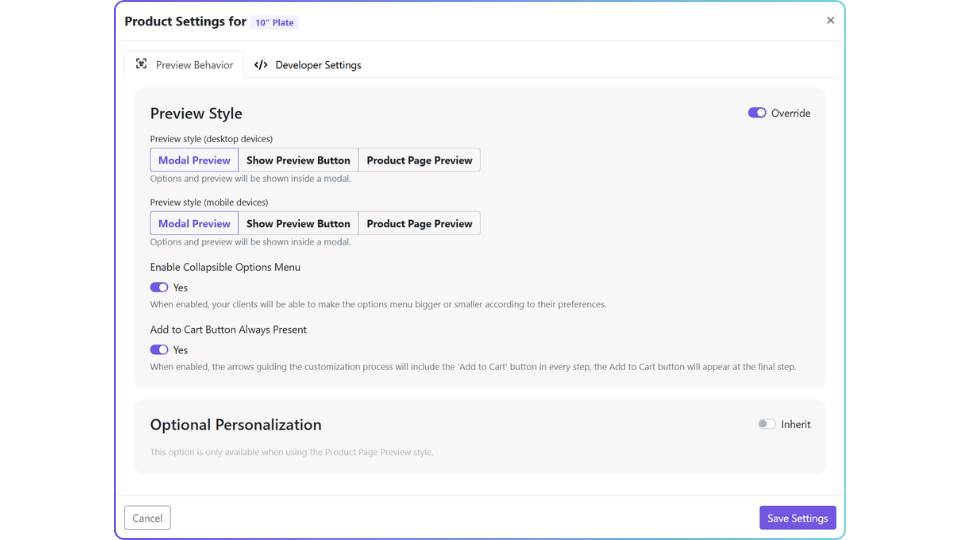
This makes it much easier to tailor the experience for different product types, or to experiment with new preview styles without committing your whole store to the change.
For example, you can test a new preview style on a few products first before rolling it out across your entire catalog.
What’s next? We’ll continue bringing more store settings down to the product level, including things like option layouts and styles.
Which settings would you be most excited to control per product? 👀